1. What Zelari does
Zelari is a Shopify embedded app. It runs inside your Shopify Admin and watches inventory as it changes.
How it works:
- Something changes stock in Shopify (sale, manual edit, restock, etc.).
- Zelari records that change.
- Rules and math check whether the change looks unusual for your store.
- If it is unusual, Zelari creates an anomaly.
- AI writes a short, clear explanation so you know what happened and what to consider next.
Zelari does not:
- Replace Shopify Inventory as the source of truth for stock quantities
- Automatically reorder products for you
- Let AI run your inventory without your approval
- Sync inventory to Amazon, Etsy, or other marketplaces (Shopify-focused today)
Core idea: AI explains what the system found. You stay in control.
2. Install and first sync
Install
- Open Zelari from the Shopify App Store (or the install link from zelari.io when the listing is live).
- Click Install / Add app and approve the requested permissions.
- Shopify opens Zelari inside Admin.
First sync (important)
On first install Zelari imports:
- Your products and variants
- Current inventory levels (primary location)
- About 90 days of order history (used for velocity and benchmarks)
This usually takes about 1–5 minutes. If Overview or Inventory looks empty at first, wait a minute and refresh the page.
After sync
You should see data on:
- Overview (attention metrics and charts)
- Inventory (live quantities from Shopify)
- Insights (inventory math)
- Anomalies / History as events accumulate
History builds from the moment Zelari starts tracking. Upgrading later does not magically create past inventory edits Shopify never sent to Zelari.
3. How to open the app
- In Shopify Admin, go to Apps.
- Click Zelari.
You will see a left sidebar (Shopify app navigation) with:
| Tab | Purpose |
|---|---|
| Overview | Daily pulse: what needs attention |
| Inventory | Live stock table with filters |
| Insights | Full inventory math and movers |
| Anomalies | Unusual stock changes |
| History | Per-SKU timeline |
| Settings | Thresholds, email, plan |
All dates and times use your Shopify store timezone.
4. Overview
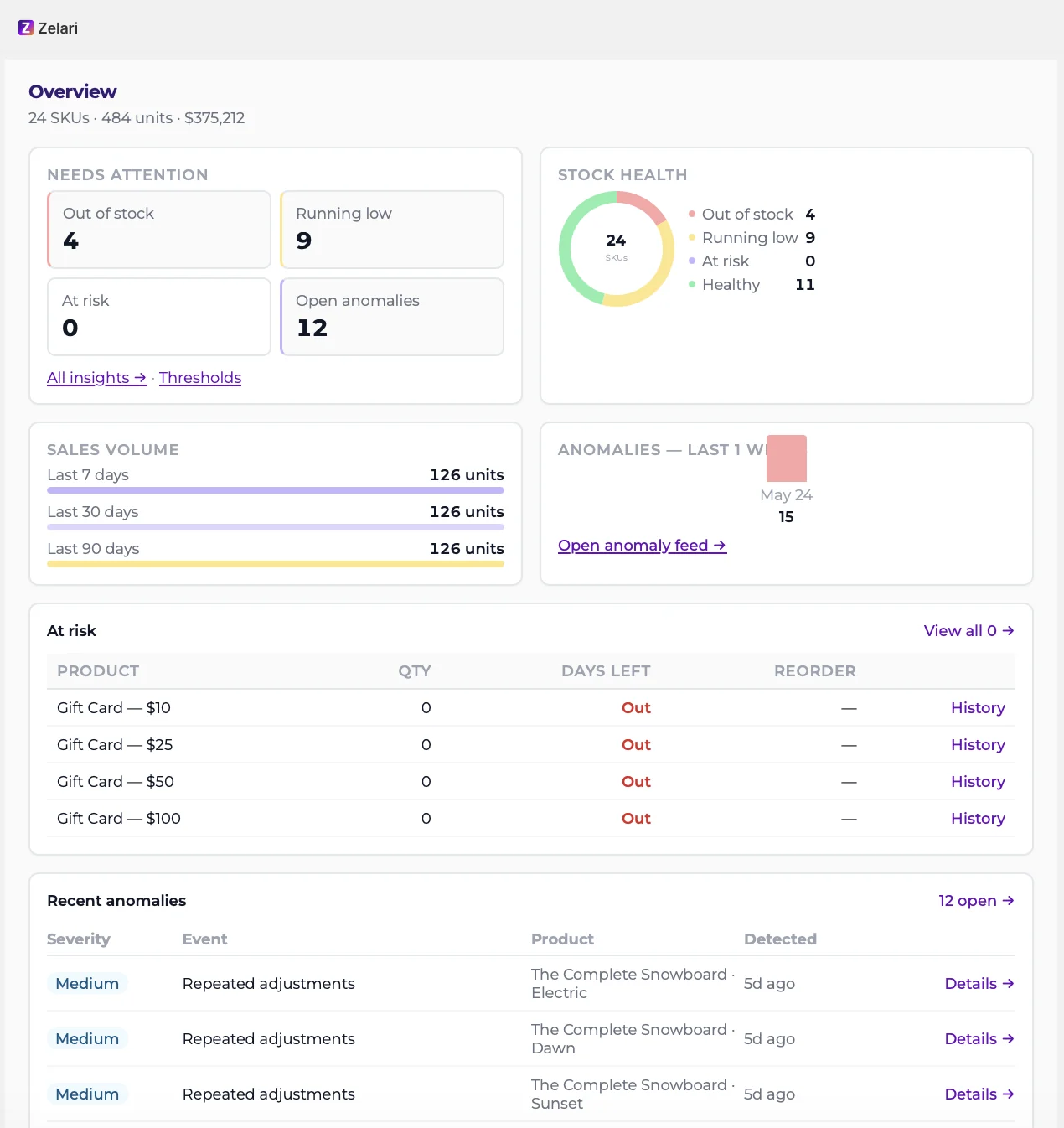
Best for: A quick daily check: “What should I look at right now?”
What you see
- Needs attention metrics (for example out of stock, running low, at risk, open anomalies). Many of these are clickable and take you to Inventory or Anomalies with a useful filter.
- Charts such as stock health and recent anomaly activity.
- Top at-risk products (stock that may not cover your reorder lead time).
- Recent anomalies with links to detail (when your plan allows full detail).
How to use it
- Open Overview each morning (or after a busy sales day).
- Click any attention metric that is not zero.
- Scan recent anomalies; open ones marked critical or high first.
- Use Insights when you want the full metrics wall, not just the pulse.
 Overview screen
5. Inventory
Best for: Working the live catalog the way you do in Shopify Inventory, with Zelari intelligence on top.
Live data
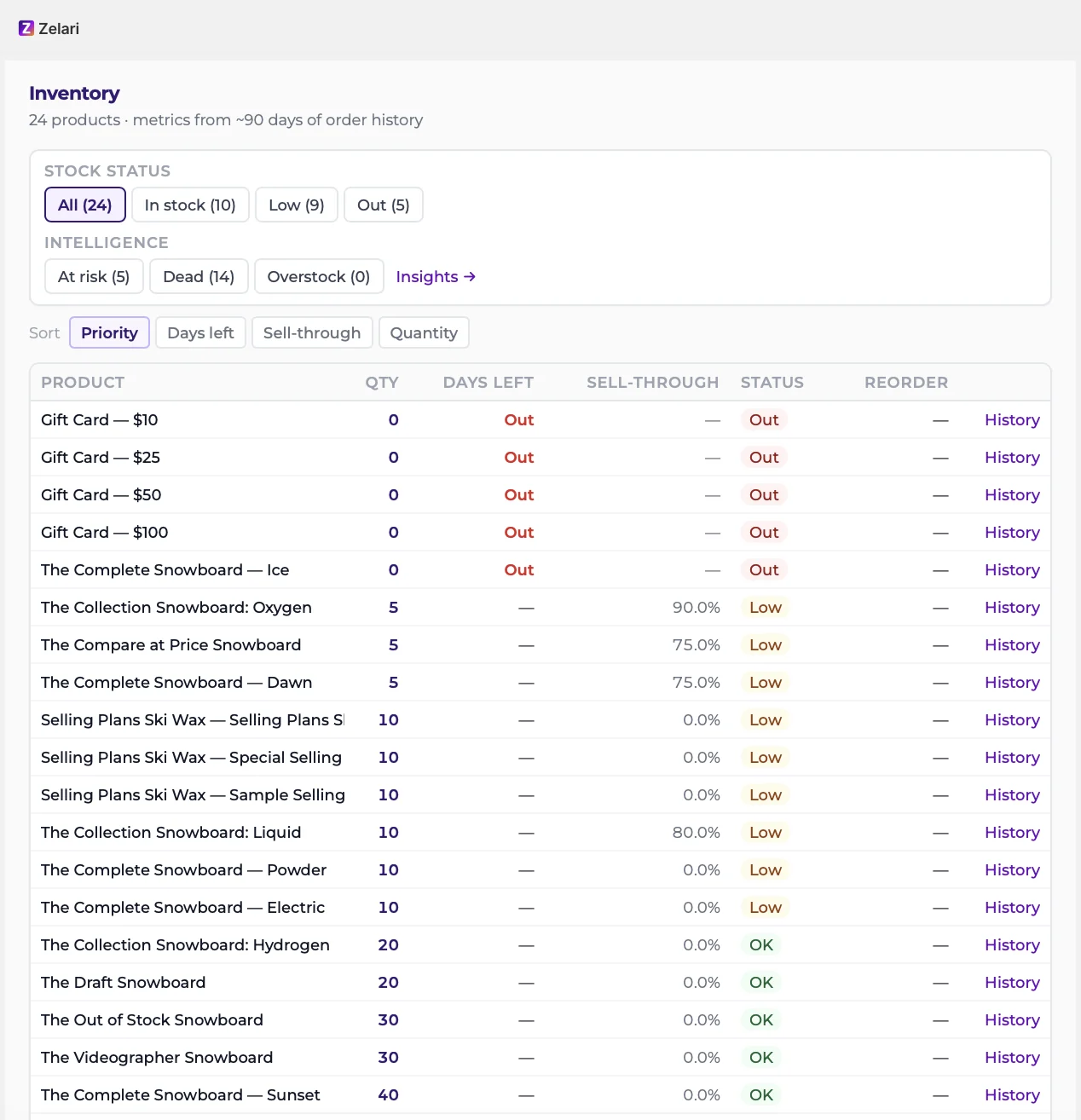
Quantities come from Shopify (primary location), so they should match Admin → Products → Inventory for that location.
Filters
Stock status
- All
- In stock
- Low
- Out
Intelligence
- At risk
- Dead stock
- Overstock
There is also a shortcut link to Insights.
Sort
- Priority (status)
- Days left
- Sell-through
- Quantity
Table
Typical columns include product/variant, quantity, days on hand, sell-through, reorder-related fields, and a History link per row.
Tips
- Use Out and At risk after promotions or restocks.
- Click History on a row when a quantity looks wrong and you want the timeline.
- If your catalog is larger than your plan’s SKU band (Starter: about 100 variants), Zelari still tracks the store but full metrics apply within the band; Settings / plan messaging explains upgrades.
 Inventory screen
6. Insights
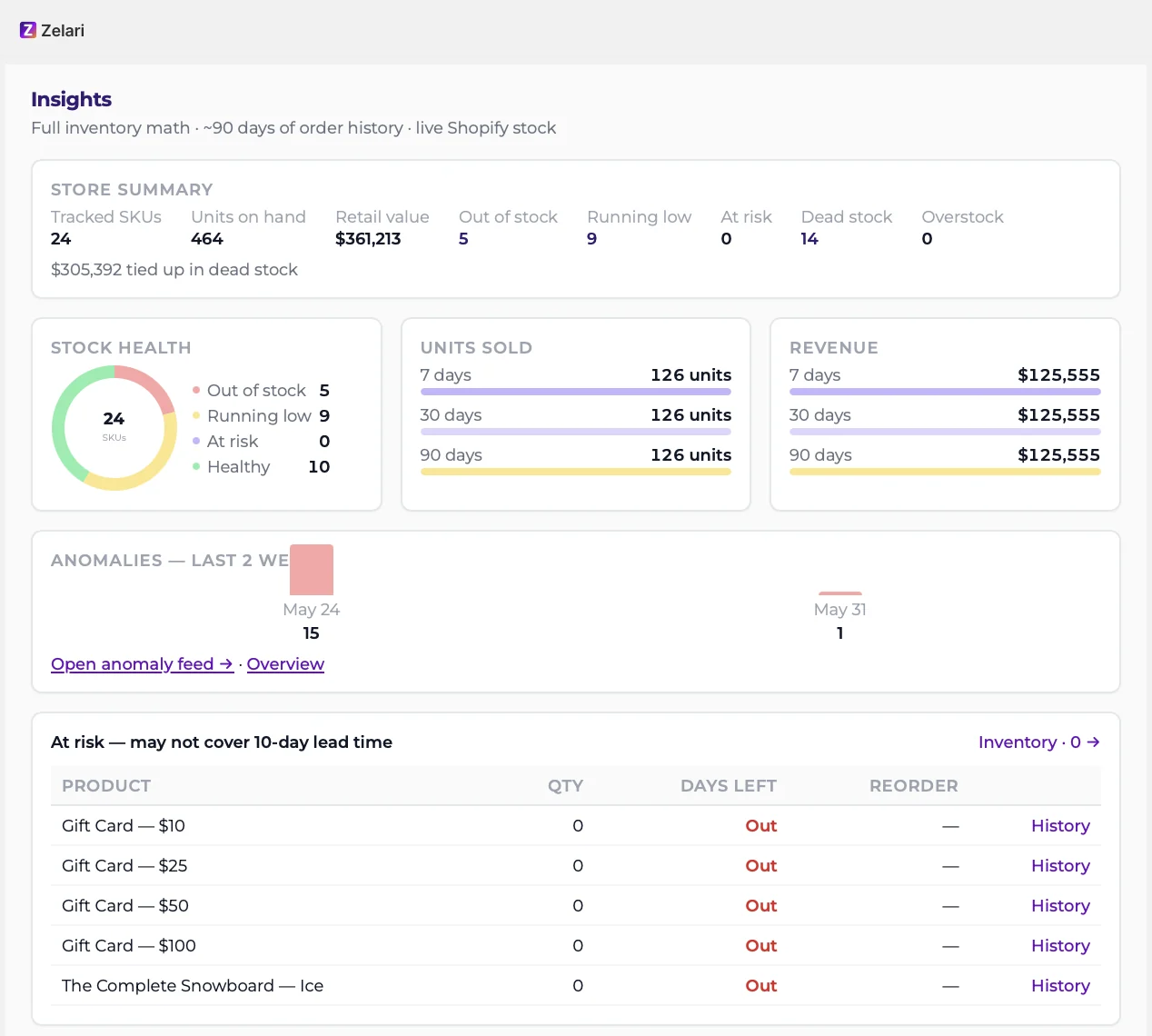
Best for: Deeper inventory math (the spreadsheet work Zelari automates).
What you get
Examples of sections and ideas you will see:
- Summary KPIs (SKUs tracked, units on hand, retail value where available)
- Charts (stock health, sales/revenue bars, anomaly trends)
- Sales pulse for 7 / 30 / 90 days
- Lists such as at-risk, dead, overstock, fast / slow movers (often with Last sold)
- Heating / cooling style movement signals
- Reorder-oriented math (velocity, days on hand, sell-through, min/max style targets)
Starter includes this math within the SKU band. It is not locked behind Builder.
How to use it
- Open Insights when planning restocks or reviewing slow movers.
- Jump to Inventory filters from related lists when you want to act SKU by SKU.
- Use History on a specific variant when numbers need context.
 Insights screen
7. Anomalies
Best for: “Did anything unusual happen to stock?”
Anomalies are created when Zelari’s rules decide a change is worth your attention. Detection runs in the background for every store.
Example anomaly types
| Type (as shown in the app) | Meaning (simple) |
|---|---|
| Out of stock | Quantity hit zero |
| Low stock | Below your running-low threshold |
| Sudden drop | Large drop vs your normal pattern |
| Drop without order | Drop that does not match order activity |
| Exceeds weekly average | Drop larger than typical weekly pace |
| Velocity spike | Selling or moving much faster than usual |
| Unexpected spike | Unusual increase |
| Outside business hours | Odd timing for a change |
| Repeated adjustments | Many manual-style changes in a short window |
| Negative inventory | Quantity went below zero |
Feed features
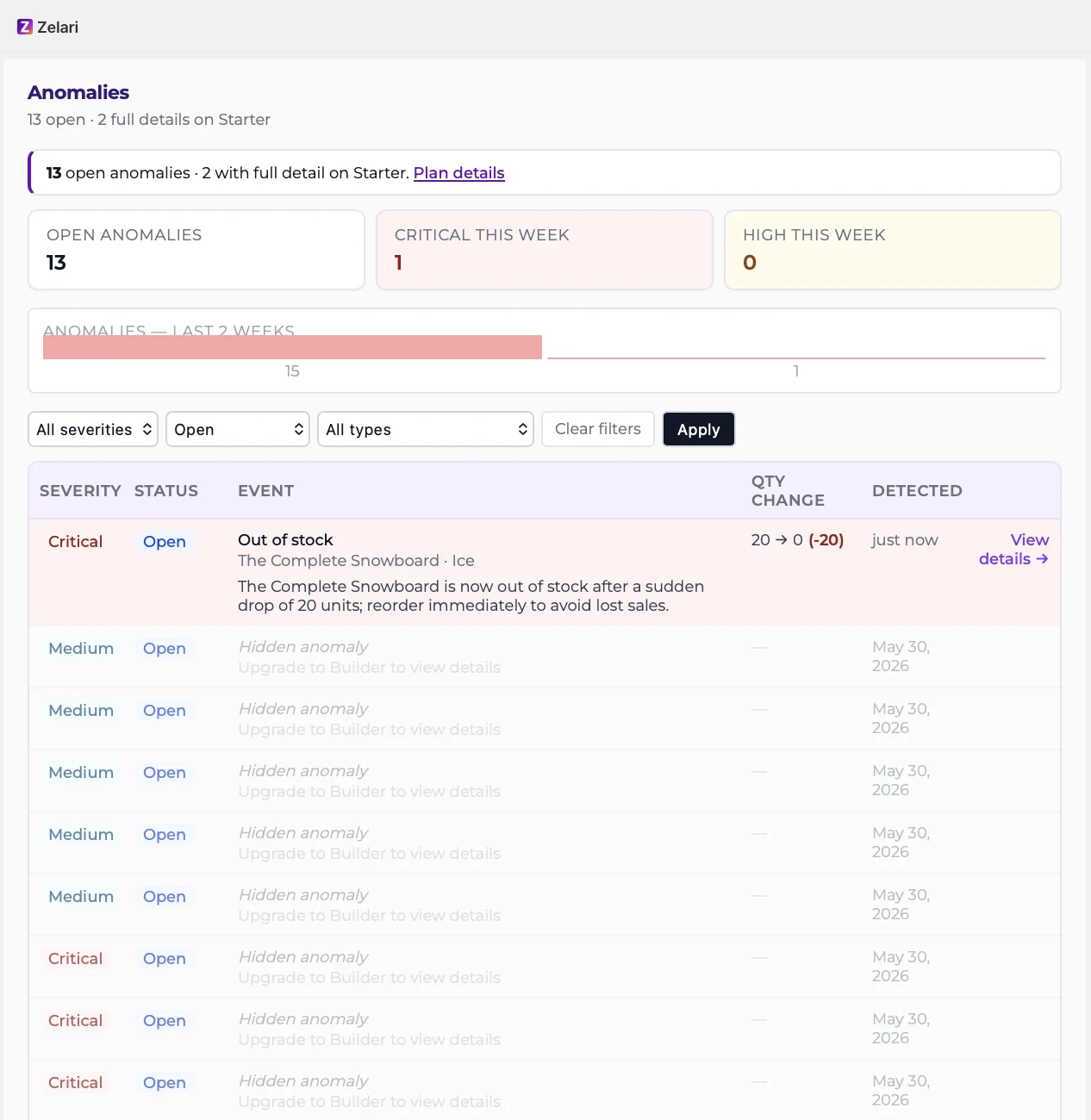
- List of anomalies with severity and dates
- Type filter
- Weekly activity summary (bars / chart)
Starter plan note
On Starter:
- Zelari still detects anomalies broadly.
- You get two full-detail anomaly slots (newest plus ones you have acted on, per product rules).
- Other rows may show as limited / redacted (you still see severity and date).
- Upgrade messaging points to Builder for the full feed.
 Anomalies screen
8. Anomaly detail
Open an anomaly from Overview or the Anomalies list.
What you see on a full-detail page
- Product / variant and severity
- Evidence of what changed (quantities, timing, related context)
- Which rules fired (in merchant-friendly language)
- AI explanation (when available and within your AI limits)
- Actions to mark how you want to treat the alert
Feedback actions
| Action | Use when |
|---|---|
| Acknowledge | You reviewed it; mark it handled without changing sensitivity much |
| Dismiss | It was noisy / not useful (repeated dismissals can make detection a bit less sensitive over time) |
| Confirm | It was a real problem you care about (repeated confirms can make detection a bit more sensitive) |
Your feedback helps Zelari tune sensitivity for your store. It does not delete your Shopify inventory history.
AI limits (Starter)
- About 20 AI explanations per month
- About 3 per day
If you hit the limit, you may see a fallback message instead of a fresh AI write-up. Upgrading tiers raises or removes the cap (Builder / Operator as those plans launch).
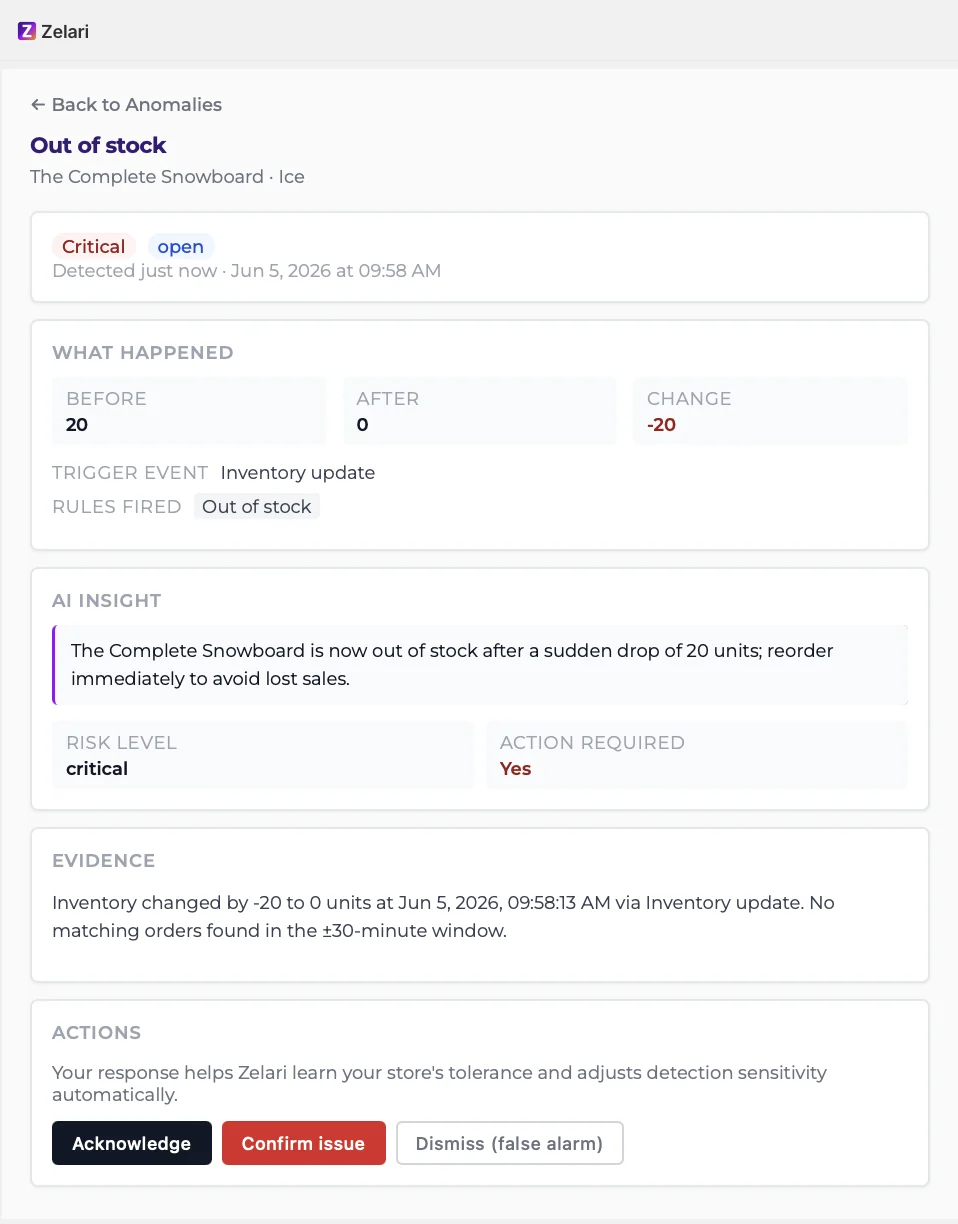 Anomaly detail screen
9. History
Best for: “What happened to this SKU over time?”
How to open History
- From Inventory, use the History link on a row, or
- Open History from the nav and select a variant when prompted
What you see
- A timeline of recorded stock changes (what Zelari captured after install / sync)
- Snapshot insights (change stats, triggers, velocity context where available)
Starter limit
Starter history view is limited to about the last 30 days of recorded data. Builder is designed for up to 12 months recorded (as data accumulates; not an instant 12-month backfill on upgrade).
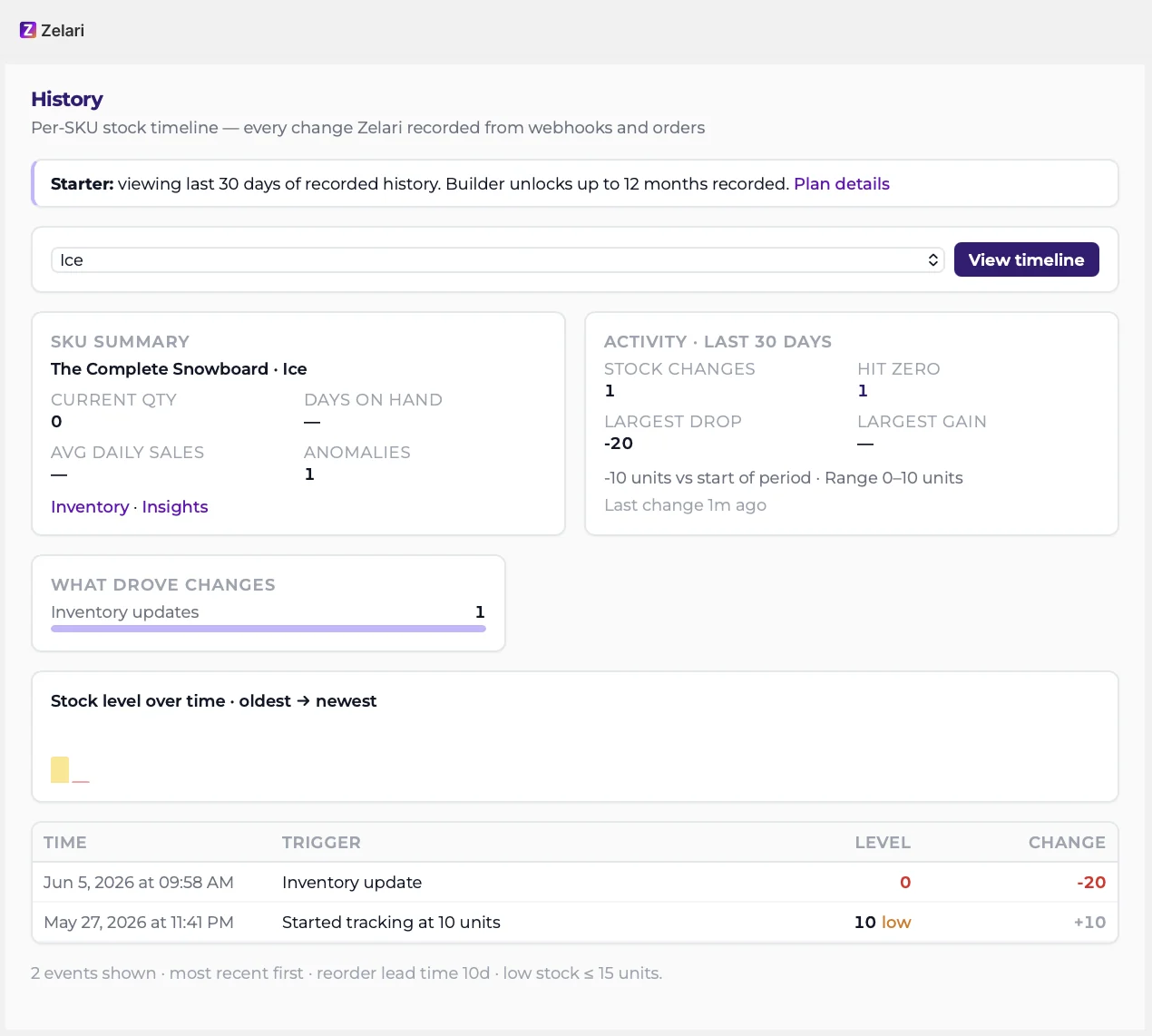 History screen
10. Settings
Open Settings from the nav.
Inventory thresholds
| Setting | What it does |
|---|---|
| Running low threshold (units) | When quantity is at or below this number, items can show as low / feed related metrics (typically 1–9999) |
| Reorder lead time (days) | Used for at-risk lists, reorder quantity hints, and min/max style targets (typically 1–90 days) |
Click Save. Overview, Inventory, and Insights refresh these ideas on your next page load.
Plan panel
Shows your current plan (for example Starter), AI allowance summary, and upgrade previews for Builder / Operator when those are available to purchase.
Email alerts
See the next section.
11. Email alerts
Emails come from noreply@zelari.io. Do not reply to that address; change preferences in Settings.
What you can receive
| When | |
|---|---|
| Instant alert | A new high or critical anomaly (on Starter, tied to anomalies you can fully see) |
| Weekly digest | Mondays (around midday UTC) when you have at least one open anomaly |
How to turn them on
- Go to Settings → Email alerts.
- Enter the inbox that should receive alerts (often defaults from your Shopify shop email).
- Toggle instant alerts and / or weekly digest.
- Save.
12. Plans, trial, and billing
Billing runs through Shopify (App Store subscription), not a separate card form on zelari.io.
30-day free trial
New installs get a 30-day free trial with Starter features. You are not charged during the trial. When it ends, Shopify asks you to approve the Starter subscription to keep using Zelari. Settings shows your trial status and how to subscribe.
Starter (current paid plan)
- $19 / month after trial (billed through Shopify)
- Full inventory math within about 100 SKUs
- Anomaly detection always on; 2 full-detail anomaly slots
- AI explanations: 20 / month · 3 / day
- History view: about 30 days
- Email alerts: instant high/critical + weekly digest
Builder and Operator (coming as paid upgrades)
Shown in the app and on the website for planning. Full paid unlock (checkout that changes your tier) rolls out in stages:
| Plan | Price | Direction |
|---|---|---|
| Builder | $39 / mo | Full anomaly feed, more AI, longer history, export |
| Operator | $59 / mo | Unlimited AI, forecasting, financial inventory intelligence |
Until those launches are complete, some upgrade buttons may be preview only.
Extra AI packs
Zelari does not sell mid-month AI add-on packs. If you need more explanations, move to a higher plan when available.
13. Tips for daily use
- Start on Overview after busy days.
- Fix Out of stock and critical anomalies first.
- Use Inventory → At risk before you leave for the weekend.
- Adjust reorder lead time in Settings if your supplier is slow or fast.
- On anomaly detail, Confirm real issues and Dismiss noise so detection learns your store.
- Check History before blaming Shopify or a staff edit.
- Keep email alerts on for high/critical so you are not only checking Admin.
14. FAQ
Does Zelari change my inventory in Shopify?
No. It reads inventory events and explains them. You (or Shopify) remain the source of truth for quantities.
Why is Inventory empty after install?
Wait for the first sync (a few minutes), then refresh. Confirm products exist in Shopify and inventory is tracked.
Why can’t I open every anomaly on Starter?
Starter limits full detail to two slots so the plan stays affordable. Detection still runs. Builder removes that feed limit when launched.
Why is History shorter than my store’s age?
Zelari records changes from install forward (plus initial sync snapshots). The Starter view window is about 30 days of what was recorded.
Does AI decide what to reorder?
No. Rules and math flag issues; AI explains. Reorder fields are guidance based on your sales patterns and lead time.
Who do I contact for help?
Use the Contact Us page on zelari.io. For billing charges, you can also use Shopify’s app billing / subscription screens in Admin.
Version history
| Version | Effective | Summary |
|---|---|---|
| 1.0 Current | September 27, 2026 | Initial version. |